

When you update your brand identity or change your website logo, the favicon (the tiny icon that appears in browser tabs and Google search results) must also be updated. If not, users may see an outdated icon — especially in SERPs, bookmarks, and AI-powered search engines.
What Is a Favicon?
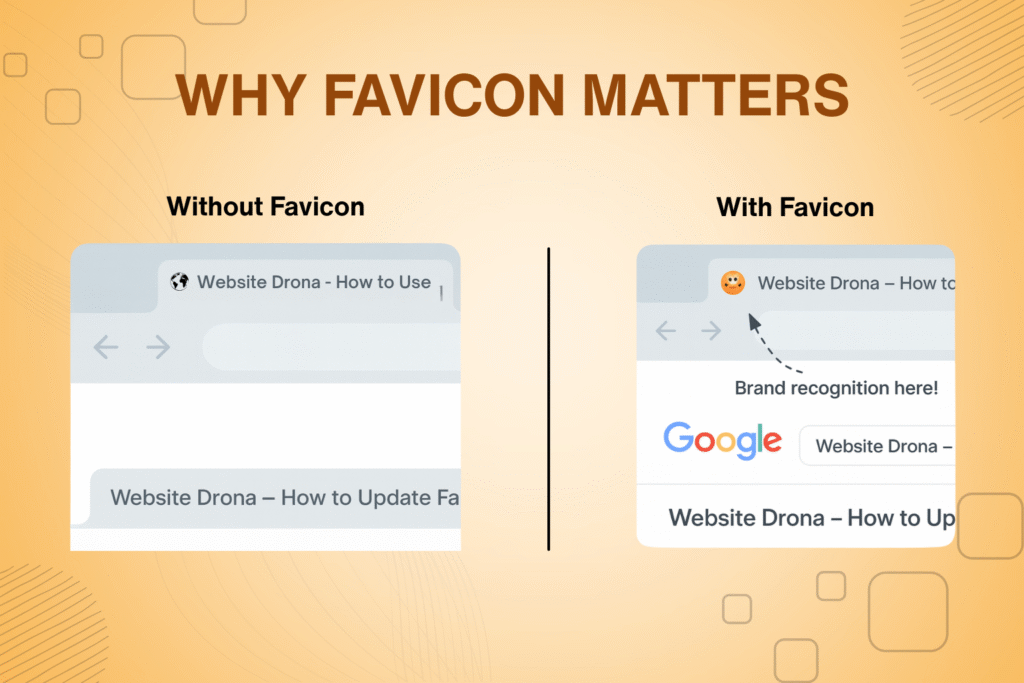
A favicon (short for favorite icon) is a small square image that represents your website in:
-
- Browser tabs
-
- Bookmarks
-
- Google Search results (SERP favicons)
-
- Mobile home screen shortcuts
-
- Web apps and PWAs
-
- AI Overview and generative answer engines
A clear, consistent favicon strengthens brand identity and improves recognition across browsers, search engines, and AI-powered platforms.
Types of Favicons
1. ICO (.ico)
-
- The traditional favicon format
-
- Supports multiple sizes in one file
-
- Most universal browser compatibility
-
- Stored at /favicon.ico
2. PNG
-
- High-quality, transparent, modern
-
- Best for multi-size favicon sets
-
- Ideal for browser, mobile, and PWA usage
3. SVG
-
- Vector-based and infinitely scalable
-
- Crisp on any screen
-
- Not supported by some older browsers
-
- Great for modern UI
4. JPG
-
- Not recommended
-
- No transparency
-
- Lower quality
Recommended Favicon Sizes
To ensure proper display across browsers and devices, use these sizes:
| Usage | Recommended Size |
| Browser tab | 16×16 px |
| High-resolution displays | 32×32 px |
| Android Chrome icon | 192×192 px |
| Apple iOS home screen | 180×180 px |
| Progressive Web App (PWA) | 512×512 px |
| General PNG icon | 48×48 px |
Favicon Generator Tools (Recommended)
Add your logo → download all favicon sizes automatically:
Best Online Favicon Generators
-
- RealFaviconGenerator.net
Generates complete favicon packages for all devices & platforms.
- RealFaviconGenerator.net
-
- Favicon.io
Create favicons from PNG, text, or emoji.
- Favicon.io
-
- Canva (Favicon Export)
Design + export icons in 16×16, 32×32, etc.
- Canva (Favicon Export)
-
- X-Icon Editor
Old-style ICO editor for developers.
- X-Icon Editor
-
- BrandBird Favicon Maker
Modern UI with multiple export sizes.
- BrandBird Favicon Maker
AI-Based Icon Generators (Optional)
-
- Looka Icon Generator
-
- Logo.com Favicon Creator
These tools make it easy to generate multi-size favicon sets automatically — ideal before updating on Wix, WordPress, Shopify, etc.
Before Updating Your Favicon
Make sure you have your icon ready in these formats: PNG (most recommended) ICO (for widest compatibility) SVG (for modern browsers)
You can create these using the favicon generator tools above.
Why It Matters in SEO / AEO / GEO
SEO Impact
Favicons indirectly support SEO by improving:
-
- Trust
-
- Professional appearance
-
- SERP click-through rate (CTR)
-
- Brand recognizability
-
- Better user experience
Answer Engine Optimization (AEO)
AI-powered search engines (e.g., Google’s AI Overview, ChatGPT Search, Perplexity) show favicons when citing websites.
A clean favicon improves visibility in:
-
- AI answer summaries
-
- Knowledge panels
-
- Aggregated AI responses
Generative Engine Optimization (GEO)
Generative engines use favicon clarity as a quality signal for:
-
- Brand identity
-
- Source reliability
-
- Snippet presentation
Important Notes About Updating Your Favicon
These apply to Wix, WordPress, Shopify, and all platforms:
1. Favicon Size
-
- Use a square image for best results.
-
- Preferred sizes: 16×16 px or 32×32 px.
-
- Even though platforms resize automatically, a clean, high-quality file improves display on retina screens and AI-powered results.
2. Browser Cache
Browsers often keep old favicons cached.
If the new icon doesn’t appear:
-
- Clear your browser cache
-
- Try incognito mode
-
- Use a different browser/device
-
- Refresh DNS/cache if needed
3. SERP Display
Google updates favicons only when it re-crawls your site.
This can take 3 days to 6 weeks, typically 1–2 weeks.
You cannot force an instant update in Google.
The only necessary action is ensuring your favicon is correctly set in your platform.
How to Update Your Favicon on Wix
If your Wix site still shows an old favicon in browser tabs or SERPs, follow these steps:
Steps to Update a Favicon in Wix
-
- Log in to your Wix Dashboard
-
- Click Settings
-
- Go to Website Settings
-
- Scroll to the Favicon section
-
- Click Update Image
-
- Upload your new logo (or choose from media library)
-
- Select image → Choose File
-
- Click Save
-
- Publish your site
How to Update Your Favicon on WordPress
Method 1: WordPress Customizer
-
- Go to Appearance → Customize
-
- Click Site Identity
-
- Scroll to Site Icon
-
- Upload your favicon
-
- Click Publish
Required size: WordPress recommends 512×512px
Method 2: Theme Options
Themes like Divi, Avada, and Astra have favicon settings under:
Theme Options → General → Logo / Favicon
Method 3: Manual Upload (Developers)
Add this to your <head>:
<link rel=”icon” type=”image/png” href=”/favicon.png”>
How to Update Your Favicon on Shopify
Steps
-
- Go to Online Store → Themes
-
- Click Customize
-
- Click Theme Settings
-
- Select Favicon
-
- Upload icon
-
- Save
Recommended size: 32×32px PNG
How to Update Your Favicon on Squarespace
Steps
-
- Go to Design
-
- Select Browser Icon (Favicon)
-
- Upload your new icon
-
- Save
Ideal size: 100×100 px PNG
How to Update Your Favicon on Blogger
Steps
-
- Go to Layout
-
- Find the Favicon section
-
- Click Edit
-
- Upload icon
-
- Save
How to Update Your Favicon on Custom HTML or PHP Websites
Upload your favicon to the root folder:
/public_html/favicon.ico
Add this inside <head>:
<link rel=”icon” href=”/favicon.ico” type=”image/x-icon”>
For multiple resolutions:
<link rel=”icon” sizes=”32×32″ href=”/favicon-32×32.png”>
<link rel=”icon” sizes=”16×16″ href=”/favicon-16×16.png”>
How Long Until Google Shows Your New Favicon?
-
- Browser update: immediately to a few hours
-
- Google SERPs update: 3 days to 6 weeks
-
- AI Overview update: usually after Google re-crawls the page
To speed up re-indexing:
Inspect URL in Google Search Console Click Request Indexing
Ensure favicon is accessible Avoid blocking icons in robots.txt
Need Help Updating Your Favicon?
Need help fixing your favicon or updating it across Wix, WordPress, Shopify, or any website? Website Drona provides quick, professional favicon setup and troubleshooting — including browser cache issues, SERP icon updates, and multi-size favicon generation.
 Get Your Favicon Fixed by Website Drona — Contact Us Today!
FAQs